How to Use AI for Work: A Practical Guide That Actually Sticks

Most people pick up an AI tool, type a vague question, get a mediocre answer, and decide the whole thing is overhyped. That’s not a problem with the technology. It’s a workflow problem — and it’s fixable in an afternoon. This guide covers how to use AI for work in a way that produces real time savings, not just novelty demos that impress nobody past the first week.
It’s written for people who already have access to at least one AI tool and want to build something that lasts: a set of habits and prompts they actually use on a Tuesday morning, not a theoretical system they abandon by Friday. If you’re looking for a comparison of every AI product on the market, this isn’t that. If you want a working setup, keep reading.
- Start by auditing one repetitive task — AI works best when the problem is narrow and specific, not open-ended.
- Prompt quality determines output quality. A vague question gets a vague answer; a well-structured prompt with context and a defined output format gets something usable.
- Most people switch tools too often. Pick one general-purpose AI and one specialist tool, then stick with them long enough to build prompts worth reusing.
- AI makes confident mistakes. The single biggest productivity killer is not catching errors before they reach a client or a colleague.
Last updated: 2026-05-16 · Sources linked inline
Using AI for work means picking a specific task, writing a prompt that tells the tool exactly what you need, reviewing the output critically, and building that into a repeatable habit. Done right, it saves somewhere between 30 minutes and 3 hours a day depending on your role. Done badly, it creates more cleanup work than it saves.
Contents
What You Need Before You Start
Tools and Access
You need exactly one general-purpose AI tool and one specialist tool. That’s the whole setup. The mistake I see constantly — and I’ve watched a lot of teams try to figure this out — is people subscribing to five different services in the same week, building no real familiarity with any of them, and then concluding that AI doesn’t work for their job.
For general-purpose work, the main options are ChatGPT (OpenAI), Claude (Anthropic), Gemini (Google), and Copilot (Microsoft). If your company uses Microsoft 365, Copilot is probably already available to you through your IT department, which sidesteps any procurement conversation. If you’re choosing independently, Claude and ChatGPT both have free tiers worth testing before you pay anything. The paid plans run roughly $20/month for personal access as of May 2026, though enterprise licensing works differently.
Specialist tools depend on what you actually do. Writers and editors often get more consistent results from Grammarly Business or Notion AI for in-document assistance. Analysts who work in spreadsheets should look at whether their existing tools (Excel, Google Sheets) already have AI baked in — because many do now, and it removes the copy-paste step entirely. Researchers tend to find Perplexity genuinely useful for quick literature synthesis, though I’d verify any citation it gives you before including it in anything formal.

Prerequisites
This is the wrong guide if you’re looking for help with AI-generated images, code generation, or building autonomous AI agents. Those are real use cases, but they’re a different article. What follows covers text-based AI for knowledge work: writing, research, summarisation, and communication tasks that most office workers spend several hours a day on.
You should have a working account with at least one AI tool and a list — even a rough one — of tasks in your job that involve a lot of typing or reading. If you don’t have that list yet, spend 10 minutes before you read further jotting down the five things that eat the most time in a typical week. That list is your roadmap.
Step-by-Step: Building Your AI Work Workflow
Step 1: Audit One Task First
Pick one task. Just one. Not “all my email” or “my whole research process.” Something specific: drafting the weekly status update, summarising meeting notes, or writing first drafts of client-facing proposals. Pick the one that takes the most time relative to how much it actually requires your judgment.
AI handles repetitive structure well. It struggles when the task requires knowing something that isn’t in its context — institutional knowledge, undocumented project history, your specific reader’s preferences. So the best starting task is one where the structure is predictable but the writing is tedious. Status updates, meeting summaries, and standard proposal sections all qualify.
Step 2: Write a Prompt with Four Components
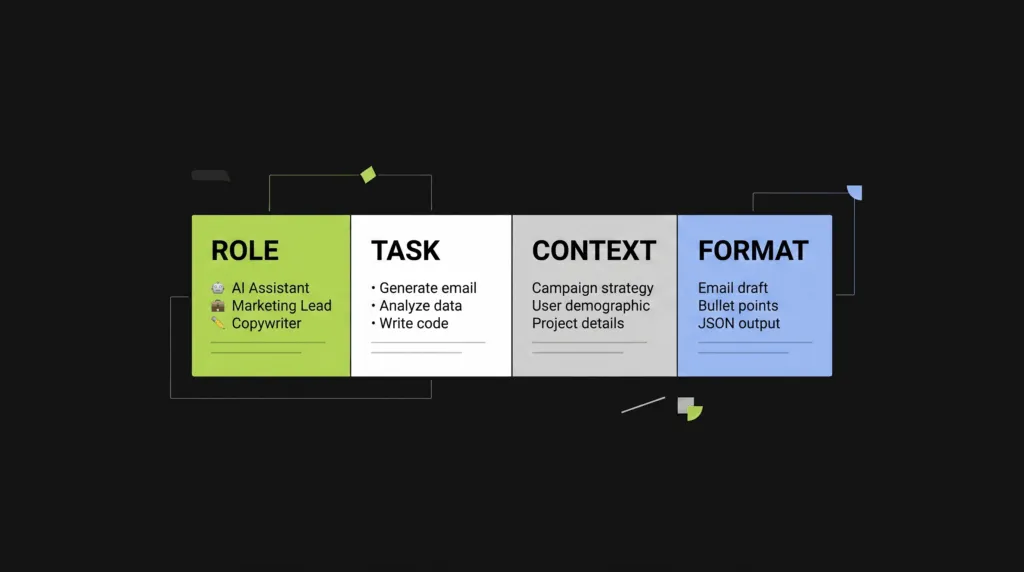
A working prompt has four parts. Not two, not seven — four covers the main failure modes without making the prompt unwieldy to write every time.
- Role: Tell the AI what it’s supposed to be. “You are a project manager writing for a non-technical client.”
- Task: State exactly what you need. “Write a one-paragraph status update.”
- Context: Give it the raw material. “Here are this week’s completed items: [list].”
- Format: Specify the output. “Plain prose, 3–4 sentences, no bullet points.”
Run the prompt. Read the output. Before you accept it, ask: does this contain anything I can’t verify? Is the tone right? Would I send this as-is? The answer is usually “almost, but I need to change two things” — which is a fine outcome. That’s what editing is for.
Step 3: Save Prompts That Work
The most underused feature in AI for work isn’t a feature. It’s a plain text file. When a prompt produces an output you actually used — one you edited lightly and sent — copy that prompt into a doc labelled “Prompts that work.”
Within a month of consistent use, you’ll have 8–12 prompts that cover 80% of your repetitive AI tasks. That’s worth more than any prompt library someone else built, because these are calibrated to your role, your clients, and your output standard. I’ve seen people build prompt libraries that save them 40–50 minutes a day once they hit about 10 solid entries. Before that threshold, it feels slower than just typing. Push through it.
Step 4: Add Context Files
Most AI tools now let you upload documents or paste in large blocks of text as context. This is where things get materially more useful. Instead of explaining your company’s tone, product names, and naming conventions every time, paste them in once at the start of a session or — better — use a tool with persistent memory or a “custom instructions” field.
A context file for most knowledge workers looks like: a one-paragraph description of your role and audience, a list of preferred terminology and things to avoid, and examples of past outputs you’d consider “good.” That last part is the one people skip. It’s also the one that makes the biggest difference, because the model can reverse-engineer your preferences from a concrete example far more accurately than from abstract instructions.
Step 5: Review Before You Send — Every Time
There is no step six until this one becomes automatic. AI tools make plausible-sounding errors. They confabulate details, misquote figures they were never given, and occasionally produce conclusions that contradict the data you pasted in. Not often — but often enough that “I skimmed it and it looked fine” is not a safe workflow for anything client-facing or publicly visible.
Build a 60-second review habit. Read the output once for factual accuracy, once for tone. Change what’s wrong. Send the human-reviewed version, not the raw output. That gap — between what the AI produced and what you actually sent — is where your judgment earns its keep.
Common Mistakes to Avoid
Mistake 1: Treating AI Like a Search Engine
Typing “summarise the latest trends in B2B SaaS” into an AI tool and expecting a reliable briefing is the most common thing I see people do wrong. AI tools are not search engines. They don’t retrieve live information from the web unless they explicitly say they do — and even then, the synthesis step introduces errors that a raw search result wouldn’t. A model trained on data through a certain date will fill in the gaps confidently, which is worse than admitting it doesn’t know.
Use AI for tasks where you provide the source material: paste in a document and ask for a summary, give it your notes and ask for a draft, share a transcript and ask for action items. When you need current information, go to actual sources first. Then bring what you found to the AI for processing. That split — human does the retrieval, AI does the synthesis — is the honest version of this workflow.
Mistake 2: Accepting the First Draft
First drafts are a starting point. For AI output, that’s even more true. The first response is usually structurally correct and factually thin. It gives you the scaffolding, not the building. Editing AI output is not a sign the tool failed — it’s the intended use. The productivity gain comes from not starting with a blank page, not from publishing whatever the model produces.
Specifically: if the output sounds like a generic LinkedIn post — all structure, no specificity, zero concrete detail — push back with a follow-up prompt. “Add one specific example for each point” or “rewrite this in plain language, no buzzwords” usually gets you somewhere. The second or third response is almost always better than the first.
Troubleshooting

The Output Is Generic and Unhelpful
Nine times out of ten, a generic output traces back to a generic prompt. Go back to the four-component structure: role, task, context, format. Check whether you actually gave the AI enough raw material to work with, or whether you essentially asked it to make something up. If the context section of your prompt is less than a paragraph, that’s usually the problem.
The fix is to paste in more source material — meeting notes, existing documents, past examples — and constrain the output format more precisely. Telling the AI to write “in the style of” a specific example you paste in produces noticeably more calibrated results than asking for tone adjustments in abstract terms.
The AI Keeps Getting Facts Wrong
If the tool is generating figures, names, or dates you can’t verify, it’s doing what’s sometimes called hallucination — producing plausible-sounding content that isn’t grounded in your source material. The fix is to anchor every factual claim to something you explicitly provided. Add this line to your prompt: “Only include facts that are explicitly stated in the text I provided. Do not add any information not present in my input.” That instruction dramatically reduces invented detail, though it doesn’t eliminate it entirely. Always verify numbers before they leave your hands.
FAQ
What is the best AI tool to use for work?
Is it safe to paste company data into an AI tool?
How much time can AI actually save at work?
Can I use AI to write emails for me?
Will AI replace my job?
What to Do Next
Pick the one repetitive task you identified earlier and run it through the four-component prompt structure today. Don’t set up a system. Don’t research more tools. Just do one task with AI, review the output, and note what you changed. That single cycle is more useful than another hour of reading about how AI for work is supposed to work.
Once you’ve done that, the next step depends on what fell short. Bad output usually means a prompt problem — go back to structure. Good output that still needed heavy editing means your context file isn’t specific enough yet. If you want to read more about which AI tools suit different work styles, we have a comparison that goes deeper on the tool differences. For people building team-level workflows, our piece on AI workflows for small teams covers the coordination layer this guide doesn’t.
The goal isn’t to use AI everywhere. It’s to use it for the right 20% of your work — the high-volume, low-judgment tasks that eat time without producing much that requires you specifically. Find that 20% and build there. The how to use AI for work question is really just: where does your time go that shouldn’t require you?
Related Stories
Musk vs OpenAI Jury Verdict: How a Three-Year Clock Ended a $150 Billion Lawsuit in 90 Minutes

Oura Ring vs AI Sleep Trackers: Which Gives Better Recovery Data?