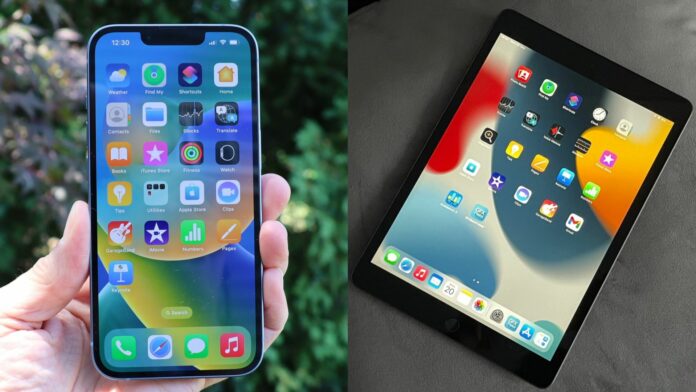
One of the frequently cited benefits of purchasing an Apple product is full compatibility with other Apple products. With iCloud, you can sync your data, apps, photos, and contacts between your iPhone, iPad, and other Apple devices.
However, some of these settings can be easy to overlook, so it’s useful to know how to manually sync different apps and data if necessary.
Equipment and Requirements
- iPhone
- ipad
- apple account
- Internet connection
Steps to sync iPhone with iPad
- Sign in to your Apple account on both devices.
- Go to the iCloud menu in the Settings app on each device.
- Switch between apps and services synchronized through iCloud.
- Check if iCloud sync is working
Step-by-Step Guide to Sync iPhone and iPad
1. Sign in to your Apple account.
Here are the first steps to sync your iPhone with iPad: Make sure you’re signed in to the same Apple account on both devices.,
You can sign in to your Apple account on iPhone and iPad: Go to the Settings app and tap the Apple Account tab.,
You can then log in manually using your email and password, or use another nearby device you’re logged in with.
2. Go to iCloud Settings.
Sign in with the same Apple account. Return to the Settings app.Your name should appear at the top of the Settings list, vector icloud list It’s inside this tab.
In the iCloud menu, you’ll see a field with a name. Saved to iCloud.,
Click this box to see a list of toggle options for syncing your calendar, photos, Notes apps, and more. Turning on this switch may cause some apps or features to connect to iCloud.
This means that if you want to sync apps between your iPhone and iPad, you need to: Set the toggle switches on both devices to the On position.
By default, iCloud storage is limited to 5GB, and you can purchase more with Apple’s iCloud+ subscription plan. Photos and videos in particular can eat up your free 5GB quickly.
3. Check if iCloud sync is working.
Once you’ve set up the apps you want to sync between your iPhone and iPad, it’s a good idea to check that iCloud is working properly.
If everything goes according to plan, your photos, calendar events, notes, and contacts should appear on both devices (of course this depends on which apps you choose to sync with).
When you turn on sync, your data will automatically sync across each device as soon as it’s created, so you’ll never need to manually sync it again.
To stop syncing, it’s that simple: Go back to iCloud Settings and uncheck the app or feature. The problem is that this causes the synced data to disappear from all devices except the original device.
Please note that it may take some time for each device to catch up. Don’t worry if you don’t see your data right away. If the issue persists after a few hours, we recommend contacting Apple Customer Support.
If you’re considering an iPhone or iPad, be sure to check out our list of the best iPhones and iPads.
You may also like
- how to turn off ipad
- How to check your iPad’s battery status
- How to take a screenshot on iPad
