Run DeepSeek-R1 Locally with Ollama: Hardware Guide
To run DeepSeek-R1 locally with Ollama, install Ollama and then pull a tag that fits your memory. For most laptops that tag is deepseek-r1:8b, a 5.2 GB download. Larger machines can step up to the 14b, 32b or 70b tags.
Local inference also keeps your prompts on your own hardware. Ollama says it does not see your prompts or data when you run models locally. This guide matches each tag to the memory it needs, then covers install, pull, verification and tuning.
- Start with deepseek-r1:8b, the default tag, a 5.2 GB download.
- The default 8b tag is built on Qwen3, not Llama.
- A 12 GB card fits the 14b tag, and a 24 GB card fits 32b.
- Below 24 GiB of VRAM, Ollama defaults to a 4k context window.
- The distills are not the full 671B model, which needs 404 GB.
What the DeepSeek-R1 tags on Ollama actually are
The deepseek-r1 library on Ollama holds two kinds of models. Most tags are distilled models, which are smaller Qwen and Llama models fine-tuned on samples from the full DeepSeek-R1. Only the 671b tag is the full model, and it downloads at 404 GB.
DeepSeek’s model card names the base model for each distill. The 1.5B and 7B use Qwen2.5-Math, while the 14B and 32B use Qwen2.5. The 70B uses Llama-3.3-70B-Instruct. The original 8B used Llama-3.1-8B, which is why many guides still call it the Llama model.
That label is now out of date for the default tag. Ollama’s latest and 8b tags point to the 8b-0528-qwen3-q4_K_M build. DeepSeek made it by post-training Qwen3 8B Base on chain-of-thought from DeepSeek-R1-0528. The older build survives as deepseek-r1:8b-llama-distill-q4_K_M, at 4.9 GB.
This matters whenever you compare an older guide with what you actually pull.
The 7b tag also remains. It is the Qwen2.5-Math distill at 4.7 GB, only 0.5 GB smaller than the 8b tag.
DeepSeek-R1 hardware requirements by memory
Memory decides which tag you can run, not CPU speed. The weights must fit in GPU memory, or Ollama pushes the rest into system RAM. Ollama’s own docs say this works but slows responses.
The matrix below pairs each memory budget with the largest tag that fits. On Windows and Linux the budget is GPU VRAM. On a Mac it is the share of unified memory the GPU may use.
VRAM compatibility matrix
Find your memory budget in the left column, then copy the tag from the right.
| 4 GB or less | deepseek-r1:1.5b, 1.1 GB download |
|---|---|
| 8 GB | deepseek-r1:8b, 5.2 GB download, 2.8 GB left |
| 12 GB | deepseek-r1:14b, 9.0 GB download, 3.0 GB left |
| 16 GB | deepseek-r1:14b, 9.0 GB download, 7.0 GB left |
| 24 GB | deepseek-r1:32b, 20 GB download, 4.0 GB left |
| 48 GB | deepseek-r1:70b, 43 GB download, 5.0 GB left |
| More than 404 GB | deepseek-r1:671b, 404 GB download |
Each leftover figure is plain subtraction: budget minus download size. That remainder must hold the context cache and runtime overhead. For example, the 8 GB row leaves 2.8 GB.
How the memory math works
One Ollama guide gives a rule of thumb: a Q4 model needs about 0.6 GB per billion parameters, plus context overhead. Every default tag matches the q4_K_M build on Ollama’s tags page. Higher-precision builds cost far more.
For example, the 14b model is 9.0 GB by default. Its q8_0 build is 16 GB, and the fp16 build is 30 GB.
Macs add one more limit. Community guides put the default GPU share near 70 percent of unified memory, so a 16 GB Mac gives the GPU roughly 11 GB. A 64 GB Mac reportedly gives about 48 GB.
Step 1: Install Ollama
First, install Ollama for your operating system. The app runs in the background and serves a local API on port 11434.
Install on macOS
macOS needs Sonoma (v14) or newer. Apple M-series chips get GPU support, while Intel Macs run on the CPU only. Download Ollama from ollama.com/download, then open the app and approve the prompt to link the ollama command.
Install on Windows
Windows needs version 10 22H2 or newer. NVIDIA owners also need driver 551.61 or newer. Download OllamaSetup.exe from ollama.com/download and run it. The installer needs no administrator rights, and it adds ollama to your user PATH.
Install on Linux
On Linux, run curl -fsSL https://ollama.com/install.sh | sh in a terminal. Then confirm the install with ollama -v.
Ollama supports NVIDIA cards with compute capability 5.0 or higher and driver 550 or newer. AMD cards need the ROCm v7 driver on Linux, and Vulkan adds support for other GPUs on Windows and Linux.
Step 2: Pull and run DeepSeek-R1
Next, open a terminal and pull the tag from your matrix row. For a 16 GB laptop, run ollama pull deepseek-r1:8b.
Other sizes follow the same pattern. Swap in deepseek-r1:14b, deepseek-r1:32b or deepseek-r1:70b as your memory allows.
Then start a chat with ollama run deepseek-r1:8b. Ollama downloads the model if it is missing and opens a prompt. Type /bye to leave.
R1 prints its reasoning before the answer. In API responses, Ollama returns that trace in a separate thinking field, so an app can show or hide it. Use ollama ls to list downloaded models and ollama rm deepseek-r1:8b to remove one.
Step 3: Confirm the model fits in GPU memory
Run ollama ps while the model is loaded. The PROCESSOR column shows 100% GPU when the whole model sits in GPU memory. A reading such as 48%/52% CPU/GPU means Ollama spilled part of the model into system RAM.
A split is not an error, but it slows generation. Ollama’s docs advise avoiding CPU offload for best performance. If you see one, pull a smaller tag or lower the context length.
Ollama keeps a model in memory for five minutes by default. Run ollama stop deepseek-r1:8b to free it sooner.
Step 4: Set the context length
Ollama picks a default context length from your VRAM. Under 24 GiB it uses 4k tokens, from 24 to 48 GiB it uses 32k, and at 48 GiB or more it uses 256k.
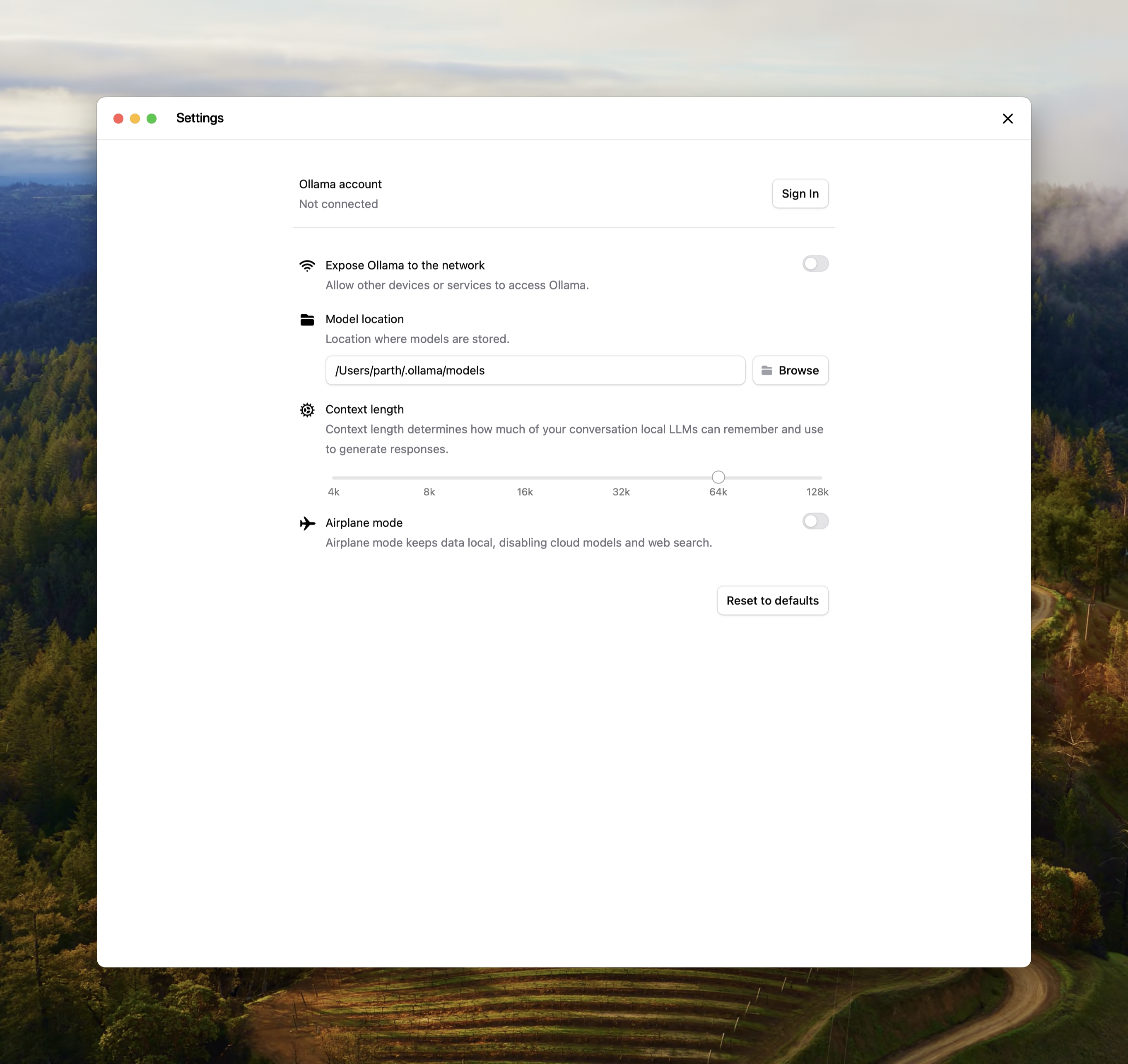
Reasoning models spend tokens on their thinking, so a 4k window can fill fast. Ollama also recommends at least 64,000 tokens for agents, coding tools and web search tasks.
To change it in the app, move the context slider in Settings. From a terminal, start the server with OLLAMA_CONTEXT_LENGTH=16384 ollama serve. Inside a chat, type /set parameter num_ctx 16384. A larger window needs more memory, so recheck ollama ps afterward.
Two server settings cut cache memory. Set OLLAMA_FLASH_ATTENTION=1 and OLLAMA_KV_CACHE_TYPE=q8_0 before starting Ollama. Ollama says q8_0 uses about half the memory of the default f16 cache, with a very small precision loss. It warns that Qwen2-style models may lose more.
Set the temperature
DeepSeek recommends a temperature of 0.5 to 0.7, with 0.6 preferred, to avoid endless repetition. In a chat, type /set parameter temperature 0.6.
Keeping your prompts on your own machine
Local inference means your prompts stay on your machine. Ollama’s FAQ says it does not see your prompts or data when you run models locally. Cloud-hosted models are a separate feature.
The server also listens only on 127.0.0.1 by default, on port 11434. Other devices cannot connect unless you change OLLAMA_HOST.
For a strict local-only setup, set OLLAMA_NO_CLOUD=1 and restart Ollama. That disables cloud models and web search. The first download still needs an internet connection, because Ollama pulls models from its library over HTTPS.
Which DeepSeek-R1 command to run for your machine
Match your hardware to one line below, then run the command.
M1 Mac with 16 GB
Run ollama run deepseek-r1:8b. The 5.2 GB download fits inside the roughly 11 GB the GPU can use. The 14b tag takes 9.0 GB of that, which leaves about 2 GB for the cache, so start with 8b.
Windows PC with a 12 GB card
Run ollama run deepseek-r1:14b on a card such as the RTX 3060 12 GB. The 9.0 GB download leaves 3.0 GB for context. Keep the 4k default or a modest increase.
RTX 3090 or 4090 with 24 GB
Run ollama run deepseek-r1:32b. The 20 GB download leaves 4.0 GB. A bigger default context can eat that margin, so confirm 100% GPU with ollama ps.
Mac with 32 GB or 64 GB
On 32 GB, choose deepseek-r1:14b. At roughly 70 percent, the GPU gets about 22 GB, so the 20 GB 32b tag is tight. On 64 GB, deepseek-r1:70b fits, since 43 GB sits under the reported 48 GB share.
Machine with no dedicated GPU
Run ollama run deepseek-r1:1.5b, a 1.1 GB download. Ollama can use system RAM, but responses may be slower. Step up one size at a time and watch the speed.
Fix the most common problems
Most failures come from memory, disk space or the network, not from the model itself.
The download is slow or fails
Ollama pulls models over HTTPS, so a proxy can block the download. Set HTTPS_PROXY if you use one. Avoid HTTP_PROXY, because Ollama does not use it for pulls and it can interrupt connections to the server.
If the drive is full, move the model folder. Models sit in ~/.ollama/models on macOS and in /usr/share/ollama/.ollama/models on Linux. On Windows they sit in C:\Users\%username%\.ollama\models. Set OLLAMA_MODELS to use another location.
Ollama ignores the GPU
On Linux, run nvidia-smi to confirm the driver sees your card. After a suspend and resume, Ollama can fall back to the CPU because of a driver bug. Ollama’s docs list a workaround that reloads the NVIDIA UVM driver: sudo rmmod nvidia_uvm && sudo modprobe nvidia_uvm.
Answers loop or ramble
DeepSeek warns that temperatures outside 0.5 to 0.7 can cause endless repetition or incoherent output. Set 0.6 first. Then check the context length, because a window that is too small can cut the reasoning short.
Frequently Asked Questions
01 Which DeepSeek-R1 model should I run first?
02 Can I run DeepSeek-R1 without a GPU?
03 Is the 70b tag the full DeepSeek-R1 model?
04 Does running R1 locally keep my prompts private?
05 Why does ollama ps show a CPU and GPU split?
Verdict: which tag to run
Pull deepseek-r1:8b if you are unsure. It is the default tag, it fits an 8 GB budget, and it shows how R1 reasons without a large download. Move up one size at a time and check ollama ps after each pull.
My advice is to check the base model before you copy a command from an older guide. The limits are real, too. The distills are not the 671b model, and the 4k default context can cut long reasoning short below 24 GiB. Skip a local setup if you need the full model, or long-context agent work on an 8 GB card.